
Download the report output
Important:
If you have set up export criteria and select Download report output to run the export job immediately, SimplyReports may time out. This time-out limit prevents large export jobs from adversely affecting system performance. Instead, save the report parameters and schedule the saved report so that the records are extracted for export after hours. For more information, see Using Export Express.
- Preview a report.
-
Select the Download report output checkbox.
The Download button appears.
- Select
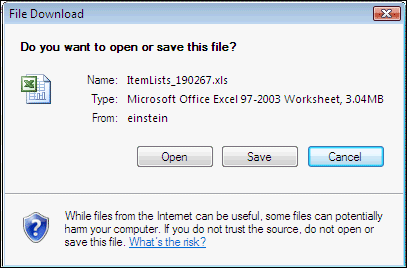
 . The File Download dialog appears.
Note:
The file size limit is 2.86 MB. To download large files, users need access to \\[servername]\C$\ProgramData\Polaris\SRServiceRoot.
-
Select Open.
The report appears in the selected format.
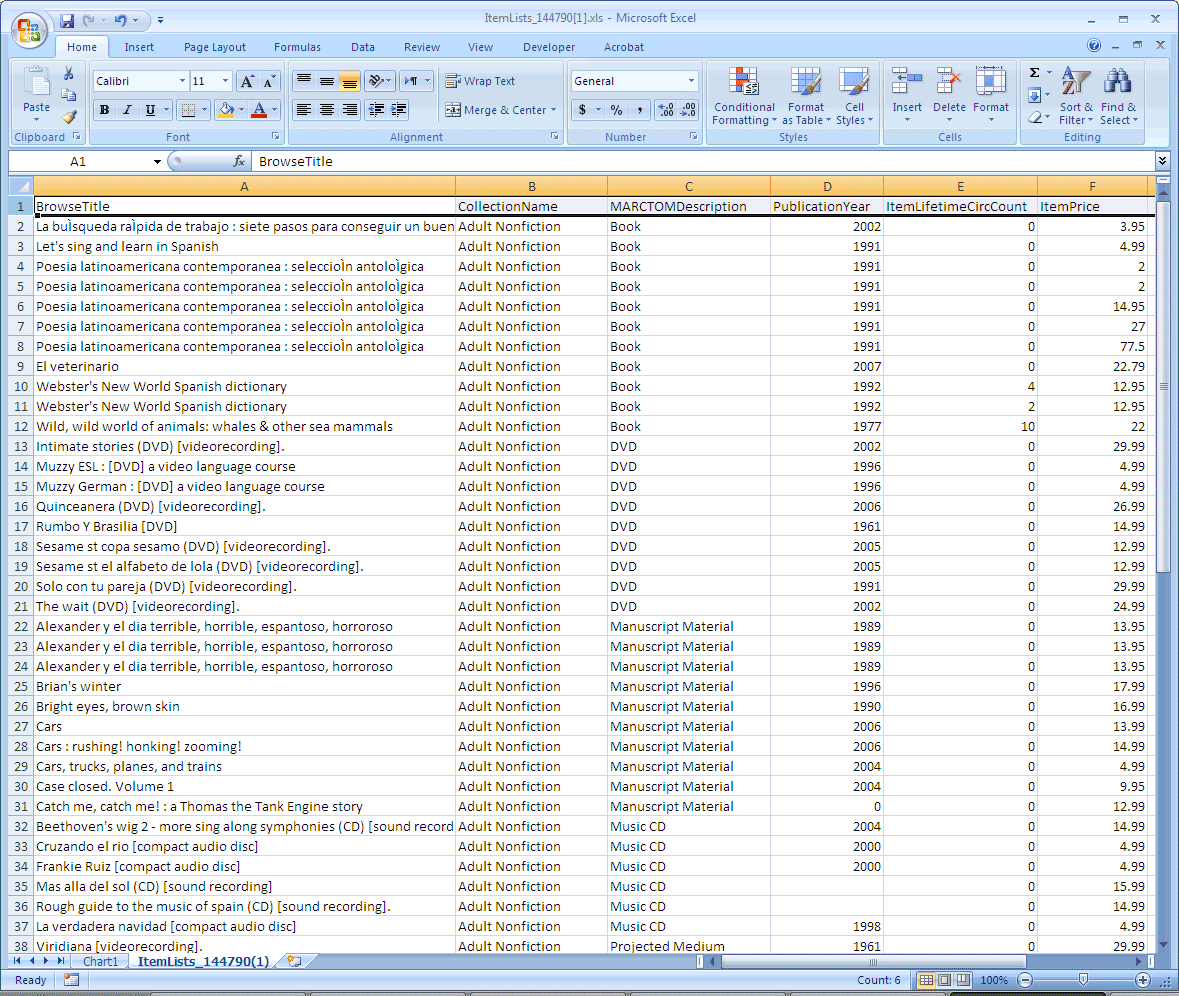
- Make any changes to the report and save it.
Tip:
You can change the column headers so they are more easily understood. For example, you could change BrowseTitle to Title and ItemBranchName to Branch.
Important:
Barcodes do not display correctly in Excel format. To correct this display problem in Excel, select the column header, right-click, and select Format Cells. In the Format Cells dialog, select Number under Category, select or type 0 in the Decimal place box, and select OK. The barcodes are then formatted correctly.
- Select File > Print to print the report.
